Finetuning an LLM for local execution
Table of contents
Introduction
In my previous article, I referred to LLMs specifically optimized for local execution.
One would naturally wonder how this can be achieved and, if it is possible, what are the most common pitfalls I need to be aware of?
What are the pros and cons of local execution, and how does it compare against the major models?
These are the questions I will attempt to answer in this article.
Terminology
Before we begin our journey to local execution LLM fine-tuning, first we need to define a few concepts and why it is imperative to understand how they affect performance and accuracy in our results. The first concept to analyze is the context length.
Context Length
Context length, or context window, is the maximum number of tokens (roughly words or subwords) a large language model (LLM) can process in a single input prompt, including conversation history.
But what does this mean? What happens if we have a context length of 4096 tokens and we run over the limit?
Memory
Context length is basically how much of our discussion an LLM can remember. If we go over it, there are a number of options for how to handle this exception.
For LM Studio, we have the following options:
| Policy | Behavior | Best for |
|---|---|---|
| Stop at Limit | Halts generation when full (reason: contextLengthReached). |
Strict limits; avoids bad outputs. |
| Truncate Middle | Drops middle conversation; keeps system prompt, first user message, and recent end. Can loop infinitely if not capped. | Tasks needing early + recent info. |
| Rolling Window | Drops oldest messages; prioritizes recency. Safest for most chats. | Long conversations; forgets irrelevant history. |
It is important to understand that everything we inject into a discussion—e.g., copying and pasting a script—becomes part of the discussion context.
If we are asking questions about a script or document we pasted earlier and we have a small context length, then after a while the actual script or document will be forgotten, and any answers we receive will most likely be hallucinations.
Models that are optimized for local execution tend to have much smaller context length capabilities than the major cloud-based LLMs.
Here is how Mistral AI’s Ministral model compares against several major cloud-based LLMs:
Comparison Table
| Model | Provider | Context Length (tokens) |
|---|---|---|
| Ministral 3/8B/14B | Mistral | 128k (up to 256k) |
| GPT-4.1 Turbo | OpenAI | 128k–1M |
| Claude Sonnet 4 | Anthropic | 1M |
| Gemini 3 Pro | 1M–2M | |
| Llama 4 Scout | Meta | 10M |
| Sonar Large | Perplexity | 128k–200k |
| Grok 4.1 | xAI | 128k–2M |
| Magic LTM-2 | Various | 100M |
Ministral is one of the most capable local models when it comes to context length, and its maximum context length is actually quite sufficient for document analysis or long conversations. But even it cannot really compete against the major online models, which can handle contexts of hundreds of thousands of tokens without an issue.
However, when LM Studio starts, it loads the model with a default value of 4096, even though it can go up to 256k.
It is natural to wonder why.
Context length is directly linked to performance and resources consumed. If you have a large context length, then for every question asked, the model has to take the whole previous discussion into account and use it for its new answer.
If you add a document and the context length is big enough, then the whole document is added to the context and is scanned every time a question is asked.
This impacts performance and also the resources consumed.
Capacity
When we are increasing the context window, we are increasing how much the model can remember in each session. This means that the model needs more memory.
This memory can either be GPU or CPU memory. There is a way to choose how much of each will be consumed. This technique is called gpu-offloading and it is a way to have some of the processing done in the GPU and some of the processing done in the CPU.
This also affect the execution speed.
If you have a system that has large enough GPU memory so that it can load the whole of your model plus the context window, then this is the most performant scenario, otherwise you need to choose how much of the execution has to be offloaded to the CPU.
Quantization
Quantization is a technique to reduce the computational and memory costs of running inference by representing the weights and activations with low-precision data types like 8-bit integer (int8) instead of the usual 32-bit floating point (float32).
Reducing the number of bits means the resulting model requires less memory storage, consumes less energy (in theory), and operations like matrix multiplication can be performed much faster with integer arithmetic. It allows us to run models on embedded devices, which sometimes only support integer data types.
It also means that any results we have might be less accurate. Many LLMs that are optimised for local execution are quantized.
Ministral AI model used in this article as example is not quantized although quantized versions of it exist.
Putting everything together
LM Studio has been moving toward a direction where it can be used without its user interface. After installation, it provides a command called lms. With lms, we can start LM Studio as a service and, while doing so, configure a number of parameters.
If your system does not have resources and you try to load LM Studio, it might crash. So lms has a dry-run flag that does not load a model with the specified parameters—it just tells you if it thinks this is possible or not:
lms load --estimate-only mistralai/ministral-3-14b-reasoning --context-length 120000
But even this method is not bulletproof. You need to start small and perform many experiments:
lms load mistralai/ministral-3-14b-reasoning --context-length 12000 --gpu=0.2
This command offloads 20% of the operations to the GPU. If your GPU does not have much memory, then it won’t allow you to define a context window larger than this—of course, this is system-dependent.
If you have enough memory in the system, you can try doing everything on the CPU and increase the context length as much as you can:
lms load mistralai/ministral-3-14b-reasoning --context-length 15000 --gpu=0.0
In my test system with 76GB RAM and 4GB GPU memory, these two options allowed me to execute the same simple query of explaining a very small shell script in 1 minute and 1 second with GPU offloading at 20%, and 1 minute and 4 seconds with 0% GPU offloading.
Disabling the GPU offloading allowed me to go way higher in context length. It allowed me to extend the context length to 120,000 tokens, load a PDF of 600 pages, and ask the AI to summarize it. It took 1 hour and 30 minutes to do it at the breakneck speed of 0.4 tokens per second, but it worked.
OpenAI API
After loading the model, you can start the server. By default, LM Studio listens only to localhost IP 127.0.0.1 and port 1234. This can be modified in order to allow for external connections.
Of course, one must be careful and not expose their LLM to the world, so normal precautions apply.
This can be done both from the LM Studio UI and from the command line with the following command:
lms server start --bind 0.0.0.0 --port 1234
Now our server is up and running and can accept connections from other systems. We can verify its state by using:
lms status
Server: ON (port: 1234)

Loaded Models
  · mistralai/ministral-3-14b-reasoning:2 - 9.12 GB
Please note that you do not need to do this in order to use the LM Studio CLI. You can use it without starting LM Studio in server mode.
The reason why you need to do this is because the LM Studio CLI is quite restrictive. It does not support certain extensions that are available only via its UI. We will cover that in the next section.
If you just want to have a quick chat with the AI, all you need to run is:
lms chat
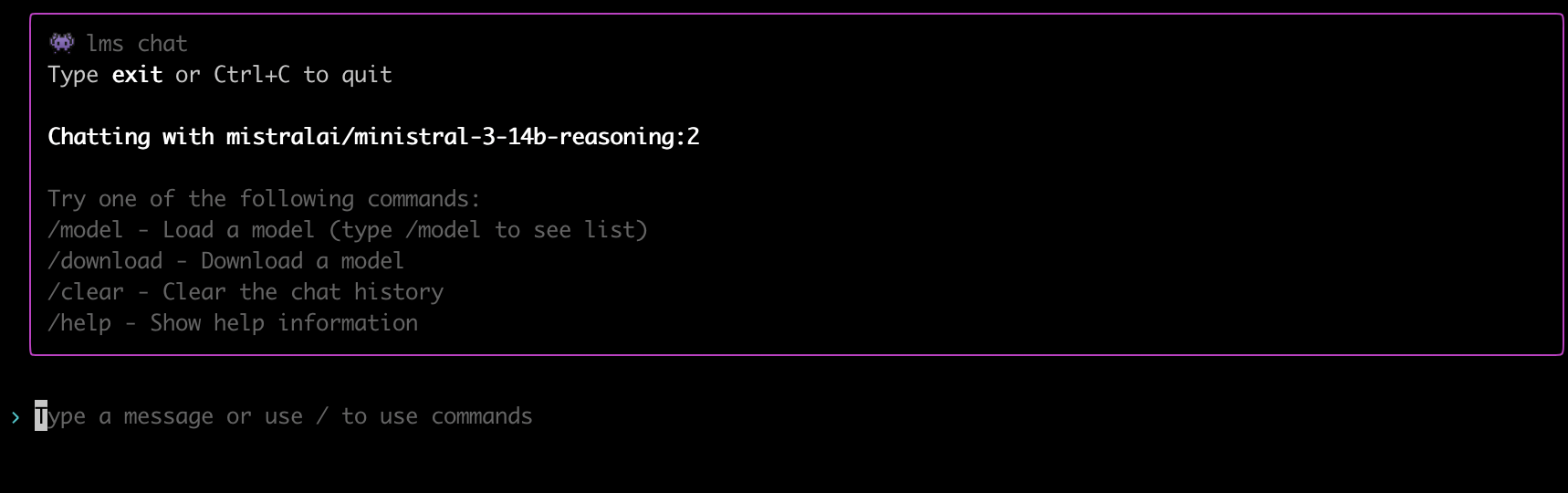
When the LM Studio server is running, it allows us to execute commands against it using an OpenAI-compatible API.
This is very important and very powerful because we can use it with any of the already available tools that are compatible with the OpenAI API.
We will analyze this even further in later sections, but for now, all you need to know is that at minimum you can use any HTTP-enabled library to submit queries to the AI.
We can see an example of a very minimalistic interaction below:
curl http://localhost:1234/v1/chat/completions \
  -H "Content-Type: application/json" \
  -d '{
    "model": "local-model",
    "messages": [
      {"role": "system", "content": "You are an expert developer."},
      {"role": "user", "content": "Is Rust better than Python?"}
    ]
  }' | jq '.choices[0].message.content'
In this interaction, it is important to highlight that the JSON we are submitting to the AI server consists of an array with several entries. These entries identify a role and content for that role.
The OpenAI API supports three roles:
- System role: This is the role where we give the AI its basic instructions (e.g., “You are an expert in Python”).
- User role: This is where our questions come in. Any user interactions are done via the user role.
- Assistant role: This is the role used for any responses from the AI to our questions.
This array is the context of our chat; it is saved in the context window alongside anything else we want to inject into it.
We can take this JSON array and transfer it between different AI chats, taking the output of specialized models for specific tasks and using it as input to other AI models, thus creating AI pipelines.
This is a very powerful concept where we can combine AI models/agents of different specializations and gradually build our context, taking the responses from one step of the pipeline and feeding it to the next.
Using this approach, we can optimize for skills and for cost. We can start an AI pipeline using local models that do not cost anything beyond the actual computational resources they use, and when it comes to doing something beyond their abilities, use one of the expensive major cloud-based models only for that specific step.
LM Studio UI
As mentioned in the previous section, LM Studio started its life as an application with a graphical user interface. Its headless operation is a recent addition.
As such, its GUI supports all the bells and whistles—even some things that are not supported via its CLI yet.
Via the UI, we can tweak the details of the model: its context size, its GPU offloading, how creative it can be, the port and IP the server will listen on. We can browse the available models and load one or more.
We can also have a collection of chat sessions that can be preserved between restarts of the application.
This is something that is not supported by the CLI. Under the hood, what the UI saves is our context JSON array, and the next time we interact with a chat, it loads the whole thing into the context.
The UI also has some unique features that are not supported by the CLI yet. It can allow us to mount several files in our context using RAG. We will explain what RAG is in the next section.
The UI allows us to use RAG by attaching up to 5 files with a maximum of 30MB total.
It also allows the model to execute JavaScript scripts in a sandboxed environment.
This is very important because, alongside RAG, it improves the precision of the responses and reduces the chances of hallucinations.
Here is an example of such a case:
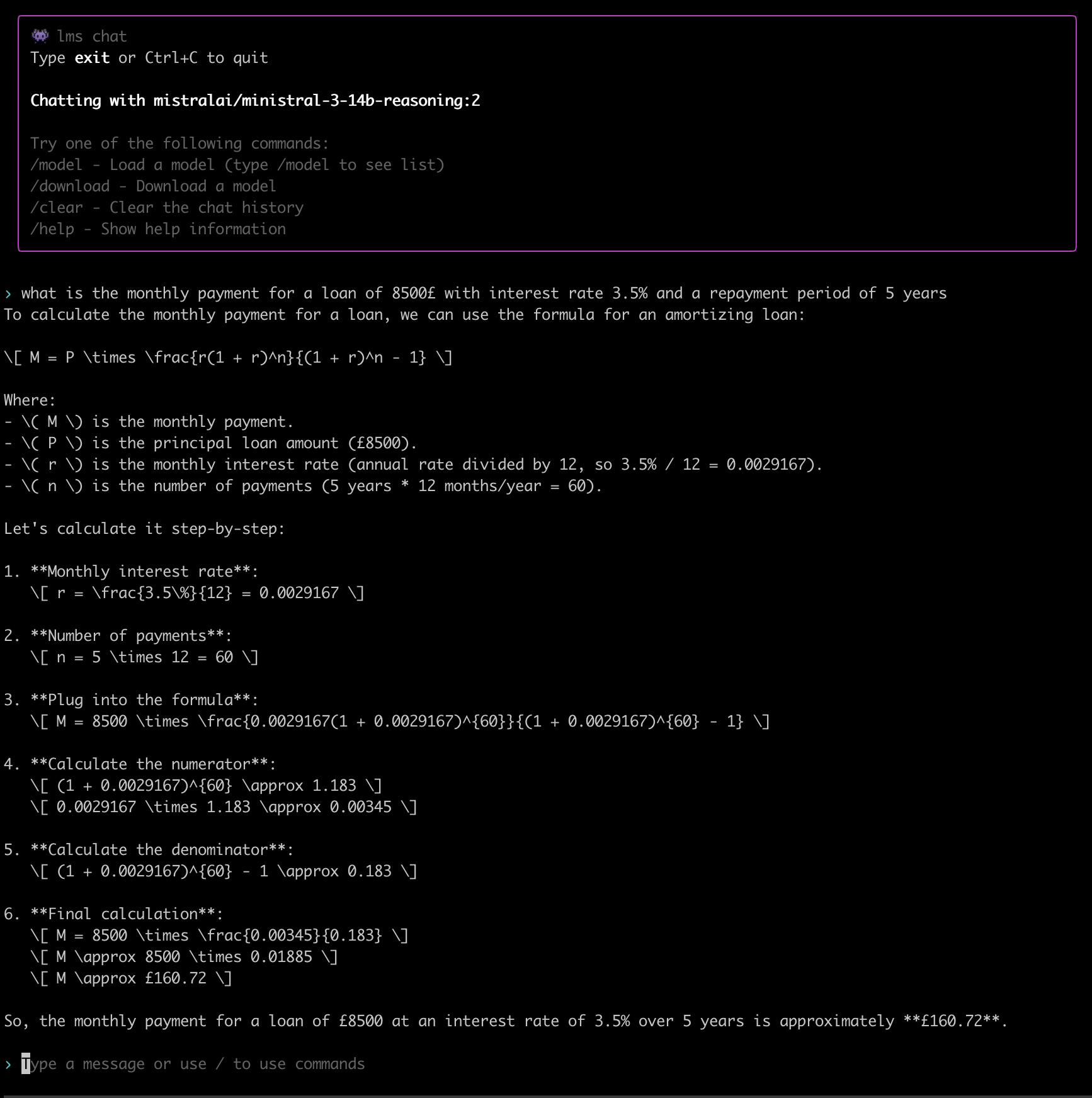 This is one of my classic test scenarios I use when I want to evaluate the quality of a financial tool, calculator, spreadsheet, or—in this case—AI.
The correct answer is not £160.72 as the AI suggested here. The correct answer is £154.63.
Here is what a cloud-based AI has to say about this:
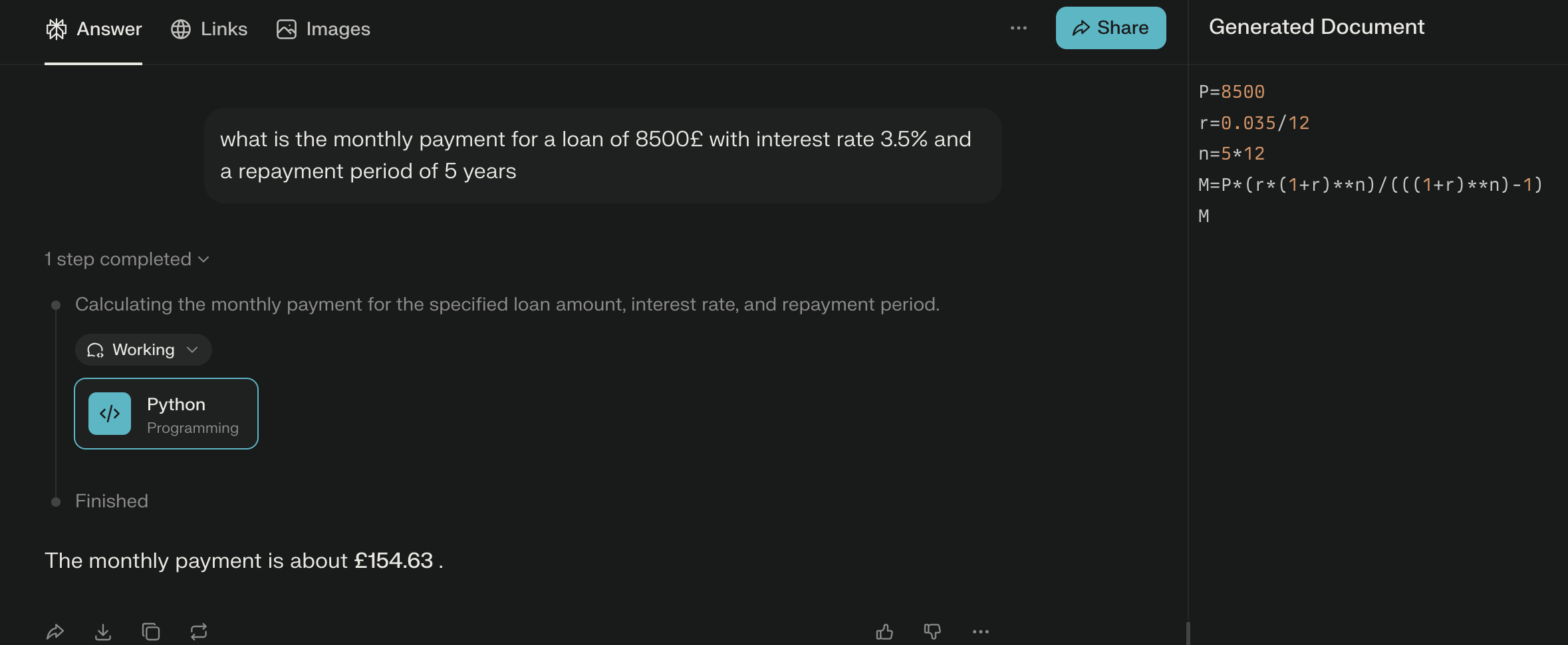
This is a very clever trick where an AI will try to use a programming language to answer any math-oriented question. It reduces the chances of hallucination considerably.
But in order to be able to do this, it needs a runtime environment, and since it is dangerous to allow an AI to run scripts on a system, this has to be in a sandbox.
This functionality does not exist in the LM Studio CLI yet, but it exists in its UI.
RAG
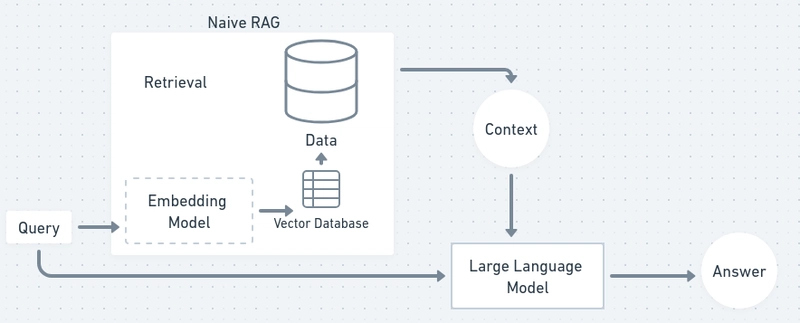
RAG in AI usually means Retrieval-Augmented Generation: a method where a language model first retrieves relevant information from an external knowledge source (like documents, a database, or search index) and then uses that retrieved content to generate its answer.
What It Does
RAG is used to make LLM outputs more accurate, up-to-date, and domain-specific by grounding responses in information outside the model’s training data.
How It Works (Typical Flow)
- You ask a question.
- A retrieval step searches a knowledge base for the most relevant passages.
- Those passages are added to the prompt/context, and the model generates an answer using both the retrieved text and its general language abilities.
In the backend, your additional files are converted into vectors and stored in a special database that allows the AI to search them and include them in its reasoning. We can see all of that diagrammatically in the following diagram:
Why People Use It
RAG can reduce “hallucinations” and improve factual reliability because the model can base its response on retrieved source material rather than memory alone.
Availability
RAG is supported by the LM Studio UI but is not supported by its CLI. Even the UI allows us to attach up to 5 documents in a chat and a maximum of 30MB.
Then we can use the AI to have a discussion about our documents.
Another way to use RAG is to use the OpenAI API that LM Studio supports. There are third-party tools that can act as a frontend and use LM Studio as a backend.
One of these tools is AnythingLLM. AnythingLLM is a competitor of LM Studio. It does almost everything LM Studio does, and in some cases, its capabilities exceed those of LM Studio.
When it comes to RAG, for example, AnythingLLM does not have a restriction on how many files and how big you can attach to a discussion. Of course, all of these have to be supported by the backend—you need a big enough context window and enough memory and compute power.
It is also worth mentioning that although I am using LM Studio as my primary example here, almost everything mentioned in this article can also be achieved by using AnythingLLM and Ollama, with Ollama being the backend and AnythingLLM the frontend.
MCP
The Model Context Protocol (MCP) is an open standard and open-source framework introduced by Anthropic in November 2024 to standardize the way artificial intelligence systems like large language models integrate and share data with external tools, systems, and data sources.
MCP provides a universal interface for reading files, executing functions, and handling contextual prompts. Following its announcement, the protocol was adopted by major AI providers, including OpenAI and Google DeepMind.
MCP is supported by both LM Studio and AnythingLLM. It allows us to define integrations between various services/components.
An LLM may use a search engine to retrieve fresh information about a topic, or connect to a database or an API in order to retrieve and analyze data.
This is one of the ways we can offload data parsing from our context to an external optimized service.
Instead of embedding the data to be processed in the context, we allow the model to retrieve it from an external service that supports MCP and then analyze it.
This is also how agentic AI works. It uses MCP to interact with other systems/agents and perform actions.
It is also where any potential hallucinations become reality if the AI is left to run without supervision.
Many companies who handed over their customer service to unsupervised AI agents discovered why this is a bad idea.
Conclusion
In this article, we presented the various concepts that come into play when we are using an AI model and presented how we can combine them in order to fine-tune a model to be used for local execution.
We also presented various tools and explained how they can be used in an optimal way to query a local AI model or as part of a wider pipeline that combines both local models as well as cloud-based ones.
As we move forward in time and agentic AI becomes more prominent and more costly, being able to use optimized models—both local and cloud-based—will be key in order to keep our costs low and our quality high.