Cooking with Lui AI: An Intro to Retrieval-Augmented Generation
Table of contents
- Introduction
- What is RAG - A refresher
- The moving parts
- The code
- Running the app
- Conclusion
- References
Introduction
In my previous article, I mentioned Retrieval-Augmented Generation (RAG) briefly. RAG is one of the most important technologies we can use today to customize an LLM without having to retrain it. It helps us provide additional knowledge to a model, and we can use local LLM models in combination with RAG to query and process private documents.
In this article, we will present the equivalent of a very simple AI “hello world” agent using RAG. This code is mostly boilerplate and nothing special but will help us present and discuss about all the moving parts that go into creating a custom AI-enabled bot with extended context using RAG.
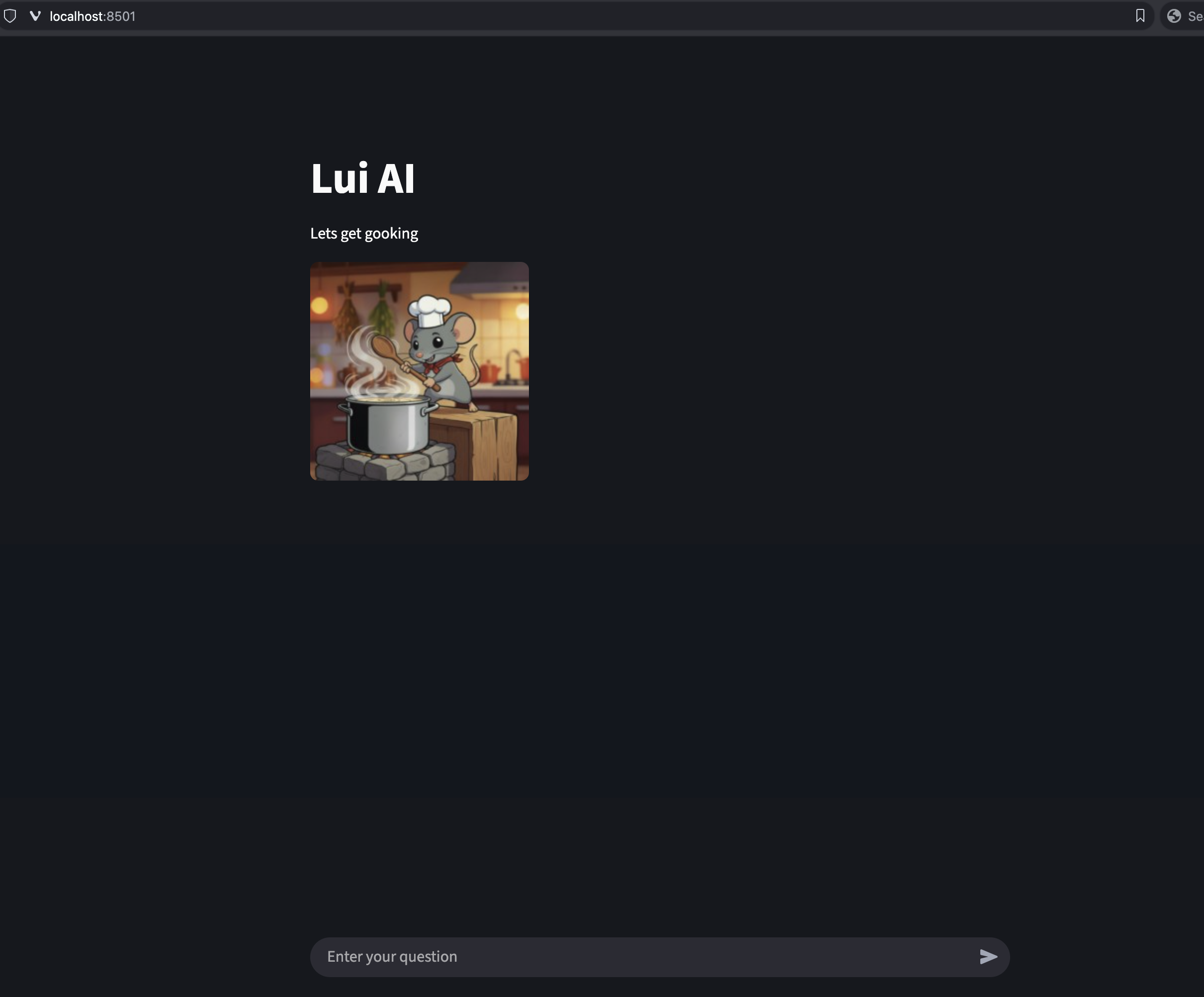
We will introduce you to Lui, a very cute AI-driven mouse chef that has read The Boston Cooking-School Cookbook by Fannie Merritt Farmer and is happy to help us with our cooking adventures.

What is RAG - A refresher
As mentioned in my previous article RAG, RAG is a method used by language models to retrieve relevant information from an external knowledge source and then use that to generate its answer. But what does that mean exactly?
Let’s analyze it.
Usually, the input of RAG is a document of some form. Depending on the complexity of your model and the interface you are using, it may support multiple formats as input or just one.
In its most simple form, it is just a text file that is read and then converted to a suitable format that will then be parsed by the model.
This text is read and then split into small chunks with a small overlap between them so no data is lost.
Then the whole dataset is used to create a vector store that will be used as an index for our model input.
When a query is submitted, the whole dataset is traversed, and the most appropriate chunks are passed to the model alongside our query. Then the model uses this input to generate an answer.
Please notice that all of these steps are independent from the actual model itself, which can be any model, local or cloud-based.
The moving parts
The model
First of all, we need to have an LLM model. It can be local or cloud-based, and it has to support some form of API.
In our example, we will use LM Studio in server mode as our backend, with Ministral loaded as our model.
LM Studio supports the OpenAI API, so we need to use some kind of client-side tool that also supports the OpenAI API.
The frontend
Streamlit
Any OpenAI-compatible framework is suitable for this kind of thing, and indeed there are several types for several programming languages.
You can build CLI tools using CLI frameworks or web-based tools using web-based frameworks in various languages.
In our example, we will use the Streamlit framework and Python.
Streamlit is open source and can be installed as a Python pip package:
pip install streamlit
Langchain
Another technology we need is the framework that will allow us to do the vectorization of our external document and create the necessary embeddings the model needs. We will use LangChain for this, an open-source project that will allow us to split the external document, do the vectorization, and create the embeddings.
Embeddings in this case is a method to represent the segments of our external document in a way that captures their meaning. Then our model can use these embeddings to compare them with others and determine how well the meaning of two segments matches.
Embeddings can be used for all sorts of things, not only in AI but also in search engines, social graphs, and generally to search, sort, group, and compare data.
LangChain also requires the sentence-transformers framework.
To install all of these, all we need to do is:
pip install langchain langchain-community langchain-openai langchain-huggingface sentence-transformers
FAIS
We also need the FAISS library, which allows us to do searches on dense vectors. It is also open-source and being developed by the Facebook team.
We can install all of the above with one command:
pip install langchain langchain-community langchain-openai langchain-huggingface streamlit faiss-cpu sentence-transformers
One word of warning: these libraries and frameworks have a lot of dependencies, and because the command above does not specify any versions, it may end up installing incompatible versions.
Instead of running the command above, I would suggest cloning the lui-ai repo, installing pyenv, and running:
pyenv virtualenv lui-ai
source ~/.pyenv/versions/lui-ai/bin/activate
pip install -r requirements.txt
The code
We can see all of the above combined in the app.py.
Specifically, we can see all the libraries imported in the first 7 lines:
import streamlit as st
from langchain_openai import ChatOpenAI
from langchain.text_splitter import CharacterTextSplitter
from langchain_huggingface import HuggingFaceEmbeddings
from langchain_community.vectorstores import FAISS
from langchain.chains import RetrievalQA
from pathlib import Path
We can see a function that sets up RAG and the backend LLM in lines 14–59.
# Function that loads the document and creates the RAG pipeline
def create_rag_chain(document_path):
    # Load the document
    with open(document_path, "r", encoding="utf-8") as f:
        document_text = f.read()

    # 1. Split the document into small "chunks"
    # This makes it easier for the model to find relevant information.
    text_splitter = CharacterTextSplitter(
        separator="\n",
        chunk_size=200,  # Chunk size (in characters)
        chunk_overlap=50,  # Overlap between chunks
        length_function=len,
    )
    docs = text_splitter.split_text(document_text)

    # 2. Create "embedding vectors" for each chunk
    # Embeddings convert text into numerical vectors that computers can understand semantically.
    # all-MiniLM-L6-v2 is a small, fast model specialized in converting text into vectors.
    embeddings = HuggingFaceEmbeddings(model_name="all-MiniLM-L6-v2")

    # 3. Create a vector store (FAISS) to save and search embeddings
    # This is like creating a searchable index for our "textbook."
    db = FAISS.from_texts(docs, embeddings)

    # 4. Configure connection to the local LLM server (LM Studio)
    llm = ChatOpenAI(
        # ↓↓↓ Paste LM Studio's "API Identifier" here ↓↓↓
        model_name="local-model",  # Specify to use the local model
        base_url="http://p52:8001/v1",  # Address of the LM Studio server
        api_key="not-needed",  # No API key needed for a local server
        temperature=0.1,  # Low temperature to stick to reference text for reliable answers
    )

    # 5. Create the RetrievalQA chain
    # This chain combines a retriever (FAISS index) with the LLM.
    # When given a query, it first finds the most relevant text chunks,
    # then passes them along with the query to the LLM to generate an answer.
    retriever = db.as_retriever()
    qa_chain = RetrievalQA.from_chain_type(
        llm=llm,
        chain_type="stuff",  # "stuff" means stuffing all relevant chunks into the prompt
        retriever=retriever,
        return_source_documents=True,
    )
    return qa_chain
Finally, we can see all of the above initialized and called in lines 62–98:
# Create the RAG chain using knowledge.txt
rag_chain = create_rag_chain("the-boston-cooking-school-cookbook.txt")

# =============================
# --- Streamlit UI ---
# =============================

st.title("Lui AI")
st.write("Lets get gooking")
logo_path = Path() / "lui-logo.jpg"

# Initialize chat history
if "messages" not in st.session_state:
    st.session_state.messages = []

# Redisplay messages from history
for message in st.session_state.messages:
    with st.chat_message(message["role"]):
        st.markdown(message["content"])

# Respond to the user's input
if prompt := st.chat_input("Enter your question"):
    # Display the user's message
    with st.chat_message("user"):
        st.markdown(prompt)
    # Add the user's message to history
    st.session_state.messages.append({"role": "user", "content": prompt})

    # Get the LLM's response
    response = rag_chain.invoke({"query": prompt})
    answer = response["result"]

    # Display the assistant's response
    with st.chat_message("assistant"):
        st.markdown(answer)
    # Add the assistant's response to history
    st.session_state.messages.append({"role": "assistant", "content": answer})
Running the app
After everything is installed, we can run the app using:
streamlit run app.py
Which opens a port where Lui is ready to answer our questions about cooking:
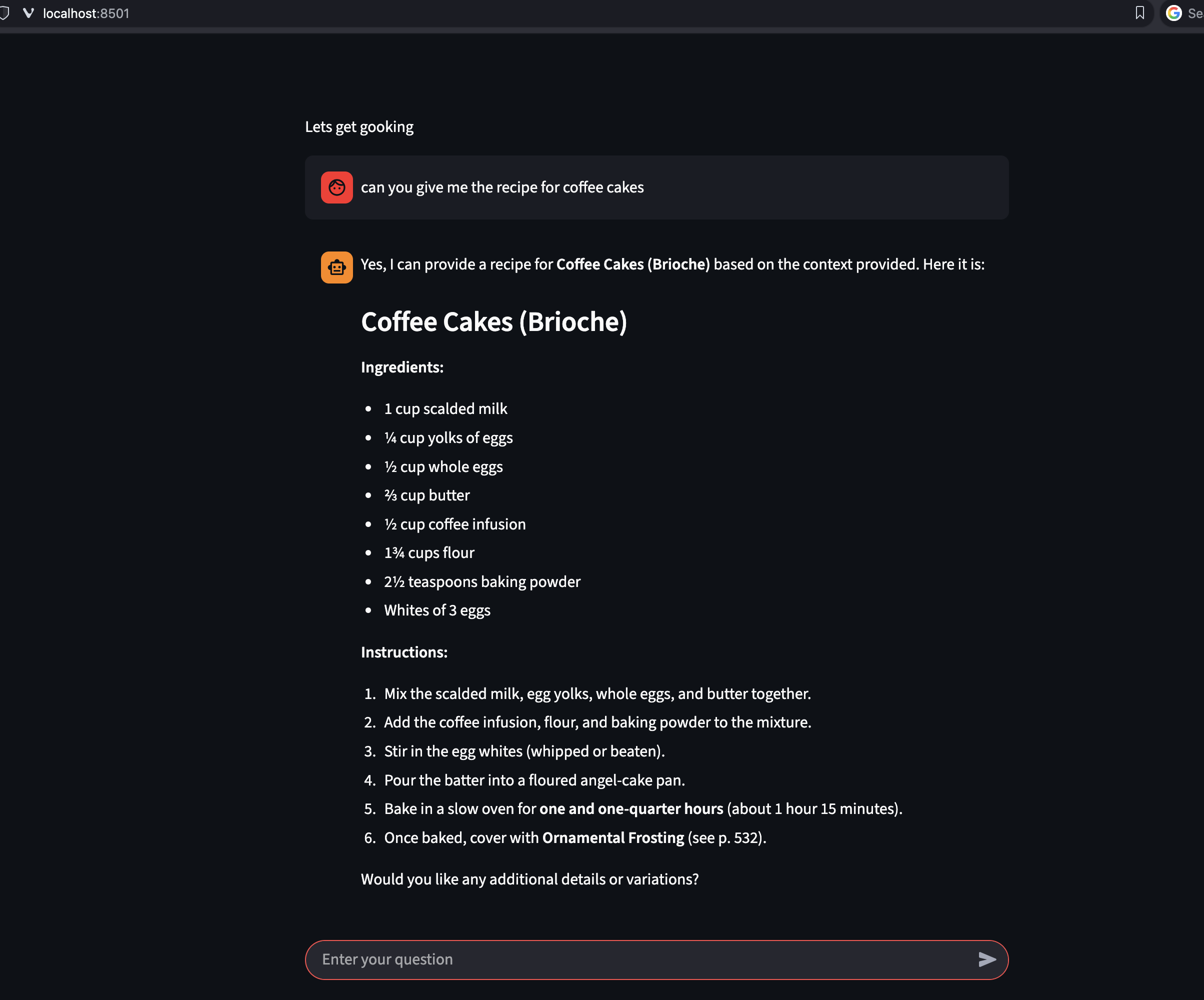
So I asked Lui for his favorite coffee cake recipe:
Conclusion
It is important to remember here that whatever additional context we provide does not replace the fundamental training of the model. So Lui is quite happy to answer questions about Git and Python as well as cooking.
Choose your model carefully. Some understand code, others are good with maths, others with reasoning, some support vision and so on and so forth.
As you can see, we can add multiple documents per chatbot and even have different chatbots with different types of contexts, all directing their questions to the same backend model.
This allows us to deploy specialized apps that will run for us as expert systems against the same LLM depending on our needs.
Also, please remember that in my previous article, I mentioned that the OpenAI API allows us to take the answer of a previous question, add it to our context, and feed it to the LLM alongside our new question using the assistant/user roles.
This is a very powerful concept, and we can use it to create pipelines that will combine different models with different specialized contexts for different things that can implement advanced workflows.